

Setting Up Your LuvLink Friendship Lamp in New Zealand: A Step-by-Step Guide
Quick answer: Setting up your LuvLink Friendship Lamp in New Zealand takes less than ten minutes. Plug it in, download the free LuvLink app, connect each lamp to your home WiFi, add them to a shared colour group, and you're done — touch the lamp, it glows, theirs glows too.
If you've just unboxed your lamp (or given one as a gift), this guide walks you through every step. No tech experience needed. If your person is setting up their lamp on the other side of the world, you can even share this page with them — the process is identical everywhere.
What You'll Need Before You Start
Before you plug anything in, do a quick check. Having these things ready saves you from stopping halfway through:
- Your LuvLink Friendship Lamp (plugged in and within reach of your router)
- A smartphone — iOS or Android, both work fine
- Your home WiFi network name and password (2.4 GHz band — more on this below)
- The LuvLink app, downloaded from the App Store or Google Play
- A confirmed email address for your account
That's genuinely it. The lamps ship ready to connect — there's no hub, no extra hardware, no subscription fee.

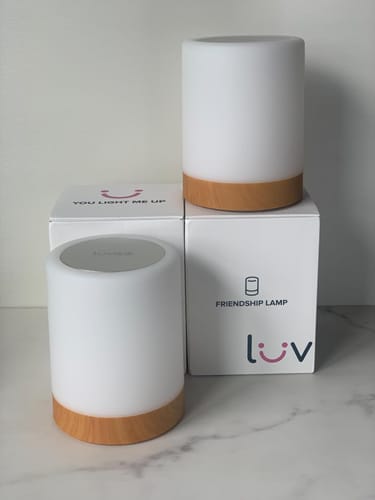
“LuvLink's new and improved Friendship Lamps have revolutionized how I stay connected with loved ones near and far. The setup was a breeze, and their sleek design seamlessly integrates into any space. These lamps emit a soft glow that brings comfort and warmth to my home, while their touch-sensitive functionality allows for effortless communication. Whether I'm sending a quick hello or a heartfelt message, the lamps serve as a tangible reminder of the our connections. With customizable colors a...”
Step 1: Plug In and Power On
Find a spot near a power outlet where the lamp will live — a bedside table, a desk, a bookshelf. The cord is a standard NZ/AU plug, so no adaptor needed. Once it's plugged in, the lamp will cycle through a light sequence to show it's powered up and waiting for a WiFi connection. That's your cue to open the app.

The lamp won't do anything useful until it's connected — but that pulsing light is a good sign. It means it's alive and ready.
Step 2: Create Your LuvLink Account
Open the LuvLink app and tap Sign Up. Enter your email address and choose a password. You'll get a confirmation email — click the link in it before moving on, otherwise the next steps won't work.
Already have an account from a previous lamp? Just log in. One account can manage multiple lamps, which is handy if you're setting up a Set of Three or larger for a family group.
Step 3: Connect Your Lamp to WiFi
This is the step most people ask about, so here's the detail it deserves.
Does my WiFi work with the Friendship Lamp?
Yes — as long as your router broadcasts a 2.4 GHz network. Most New Zealand home routers do this automatically. The lamp doesn't support 5 GHz. If your router combines both bands under a single name (common with modern mesh networks like Spark's or One New Zealand's), try temporarily separating them in your router settings, or move closer to the router during setup so your phone connects to 2.4 GHz automatically.
Here's how to connect in the app:
- Tap Add a Lamp in the app home screen.
- Select Friendship Lamp from the device list.
- Follow the on-screen prompt to hold your lamp's touch panel until it flashes white — this puts it into pairing mode.
- Enter your WiFi network name and password. Double-check the password; this is the most common reason setup stalls.
- The app will push the credentials to the lamp. When the lamp pulses and then settles on a solid colour, it's connected.
If it fails on the first try, don't stress. Move the lamp a metre or two closer to your router and try again. Once connected, you can move it anywhere in your home with WiFi coverage.
Step 4: Set Up Your Colour Group
This is the magic part. A colour group is what links your lamp to your person's lamp — anywhere on the planet. When one of you touches your lamp, every lamp in that group lights up in the colour you picked.
How does the colour group work?
In the app, go to Groups and tap Create a Group. Give it a name (something like "Mum & Me" or "The Squad"), then invite the other person by their registered email address. Once they accept in their own app, you're linked. Both lamps need to be added to the same group — without that step, nothing happens when you touch.
You each choose a personal colour from over 200 options. That's the colour your lamp glows when you're the one who touches it. So if your mum in Christchurch touches hers and it glows warm amber, you know immediately it's her thinking of you in Auckland — no phone call, no message, no awkward time-zone maths.

Step 5: Do a Test Touch
Now the fun bit. Touch the top of your lamp. Your lamp and your person's lamp should both glow in your chosen colour within a few seconds. Ask them to touch theirs — watch for their colour on your end.

If nothing happens, run through this quick checklist:
- Are both lamps showing as Online in the app? (Check the device list.)
- Are both lamps in the same colour group?
- Has the other person accepted the group invite?
- Is the lamp connected to 2.4 GHz WiFi, not 5 GHz?
Nine times out of ten, it's a missed group invite or a 5 GHz WiFi issue. Both are easy to fix.
Tips for Getting the Most Out of Your Lamp
Once you're up and running, a few small habits make the lamp feel like a real daily ritual rather than a novelty.
- Leave it plugged in and on. The lamp uses very little power and works best when it's always ready — like a kettle you never unplug.
- Pick a colour that means something. Some couples use colours that match a shared memory. Some families each pick a different colour so they always know who's thinking of them.
- Touch it at the same time each day. A morning touch, a goodnight touch — small rituals become big comfort over time.
- Add more lamps to grow your group. The Friendship Lamp comes in sets of two, three, four, five, and six. A set of four works brilliantly for a family spread across different cities — or different countries.
- Use the app to check in. The app logs recent touches, so if you missed a glow while you were out, you can still see that someone was thinking of you.

A single touch says "I'm here" without interrupting anyone's day. That's the whole idea.
If you're shopping for someone who's heading overseas — a kid going to uni, a friend moving to Australia — the guide on staying connected with family when studying overseas is worth a read alongside this one.
Thinking About Upgrading or Gifting Another Lamp?
The classic Friendship Lamp is the most popular starting point — and for good reason. But if you'd like something with a bit more personality, the Infinity Lamp adds voice messaging on top of the touch-and-glow function, and the Modern Range (Cube, Cylinder, Home, Tower) brings a sleeker, décor-friendly shape to the same connected concept.
Not sure which style suits your home? The LuvLink lamp styles guide breaks them all down side by side.
Ready to get glowing? Shop the Friendship Lamp here — sets of two through to six are available for families and friend groups of all sizes.
“This is my third iteration of products from LuvLink,and I have to say, we’ve really come a long way from the original model. With new and improved long-distance WiFi and Bluetooth capabilities, it’s easier than ever to stay connected with loved ones, no matter the distance. I’m always amazed at how such a simple product like this touch lamp can make me feel less alone, even when I’m halfway across the world from my family. The setup process is straightforward (with zero issues, thanks to this la...”
Frequently Asked Questions
Does the LuvLink Friendship Lamp work in New Zealand?
Yes, absolutely. The Friendship Lamp works anywhere with a 2.4 GHz WiFi connection, including across New Zealand and between NZ and other countries. The power plug is compatible with NZ outlets straight out of the box — no adaptor needed.
What WiFi does the Friendship Lamp need?
The lamp requires a 2.4 GHz WiFi network. It won't connect to a 5 GHz band. Most New Zealand home routers broadcast 2.4 GHz automatically — if yours combines both bands under one name, you may need to split them temporarily in your router settings during setup.
Can I connect more than two lamps together?
Yes. You can add multiple lamps to a single colour group. The Friendship Lamp is available in sets of two, three, four, five, and six, making it easy to connect a whole family or a group of close friends — even if everyone's in a different city or country.
What if my lamp won't connect during setup?
The most common causes are: using a 5 GHz WiFi band instead of 2.4 GHz, a typo in the WiFi password, or the lamp being too far from the router during the initial pairing. Move the lamp closer to the router, double-check your WiFi credentials, and try again. If you're still stuck, the LuvLink support team can help via the app or website.


